Drawing assistant: Difference between revisions
Jump to navigation
Jump to search
MK czytacz (talk | contribs) No edit summary |
MK czytacz (talk | contribs) No edit summary |
||
| Line 2: | Line 2: | ||
|commercial_product1=InstalSystem 4 | |commercial_product1=InstalSystem 4 | ||
|commercial_product2=NetSystem 4 | |commercial_product2=NetSystem 4 | ||
|p3= | |p3 =<!--gdy jest kolejny produkt handlowy, zamienić na->"produkt_handlowy3="--> | ||
|p4= | |p4 =<!--gdy jest kolejny produkt handlowy, zamienić na->"produkt_handlowy3="--> | ||
|category1=FUNCTIONALITY IS4 | |category1 =InstalSystem 4#FUNCTIONALITIES | ||
| | |category_name1 =FUNCTIONALITY IS4 | ||
|version1= | |cATEGORY2 =NetSystem 4#FUNCTIONALITIES | ||
| | |category_name2 =FUNCTIONALITY NS4 | ||
|v3= | |c3 =<!--Jest kategoria -> zamienić na: "category3=" i uzupełnić link do sekcji kategorii na stronie głównej produktu--> | ||
|v4= | |category_name3 =<!--podać nazwę kategorii "ZASTOSOWANIE"/"FUNKCJONALNOŚĆ"/...--> | ||
|version1 =[http://instalsoft.com/en/products/information-about-changes-in-instalsystem-package.html IS4.13]<!--uzupełnić link do sekcji RN danego produktu--> | |||
|v2 =[http://instalsoft.com/en/products/information-about-changes-in-netsystem-package.html NS4.7] | |||
|v3 =<!--Jest wersja -> zamienić na: "version2=" i uzupełnić link do sekcji RN danego produktu--> | |||
|v4 =<!--Jest wersja -> zamienić na: "version2=" i uzupełnić link do sekcji RN danego produktu--> | |||
}} | }} | ||
==Description== | ==Description== | ||
| Line 57: | Line 61: | ||
[[pl: Asystent rysowania]] | [[pl: Asystent rysowania]] | ||
[[Category:FUNCTIONALITY | [[Category:FUNCTIONALITY]] | ||
[[Category:InstalSystem 4]] | [[Category:InstalSystem 4]] | ||
[[Category: NetSystem 4]] | [[Category: NetSystem 4]] | ||
Revision as of 10:22, 4 September 2015
| Product | InstalSystem 4 NetSystem 4 |
| Type of article | FUNCTIONALITY IS4 [[{{{category2}}}|FUNCTIONALITY NS4]] |
| Source for translation | IS4.13 NS4.7 |
Description
Drawing assistant is funcionality avaiable in the package InstalSystem 4 and NetSystem 4.
It supports system designing, enables drawing or inserting into the project elements at a predetermined distance and at a given angle in addition to an already existing element in the project: imported base, building construction or other. It also allows the imposition of a drawn length of the pipe-run or a section of the network.
Location in the program
Drawing assistant can be triggered by:
- function key F6
- toolbar View / Show/hide drawing assistant
 .
.

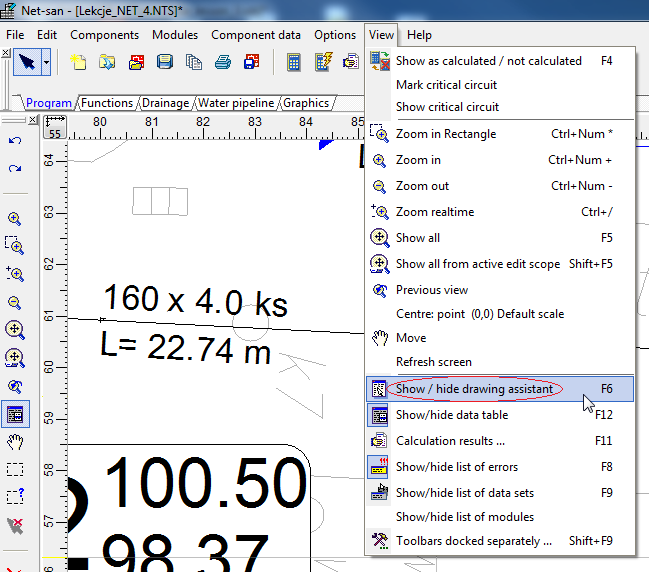
1. Selection drawing assistant from menu

Drawing assistant window will appear, which contains the following information:
- Δx, Δy - increase from the initial section of the network
- L - length of current section
- Angle - the angle of intersection with the x axis
- Help lines - are visible when "Auto" is selected.
Example of use
Insert the network section of the specified length at Net-san
- Turn off AUTO mode.
- Select the right type of network and start drawing section in selected location.
- To draw a section of example 5 m enter the desired length in Assistant drawing field "L [m]".
- Finish drawing the section.

2. Drawing the section of predetermined length - Attention! To kept section length turn off AUTO mode.

Insert the section at a given angle to the existing network section at Net-san
- Turn on AUTO mode.
- Select the right type of network and start drawing section in the selected location.
- To draw a section for example 90º enter the angle in the drawing assistant in the field "Angle of add. crossing help line [º]".
- Using the appearing help lines deflected at a given angle, finish drawing the section.

3. Drawing the section at a given angle - Attention! To help lines were visible turn on AUTO mode.

Insert the section parallel to the wall of a building in Instal-therm
- Turn on AUTO mode.
- To draw a parallel section from the existing wall by a distance eg. 0.2 m enter the desired distance in the drawing assistant in the field "Dist. of add. parallel help line [m]".
- Select the right type of the section before the beginning of drawing invade the cursor over the wall to which the sectiont is to be drawn parallel (without selecting).
- Start drawing section in the desired location using the displayed help lines.
- Finish drawing the section.

4. Drawing the section parallel to the wall with appropriate distance - Attention! To help lines were visible turn on AUTO mode.
