Designing of radiant heating floor and wall installation
| Product | InstalSystem 5 |
| Type of article | DESIGN APPLICATION |
| Source for translation | IS 5.0 Beta 30 |
Scope of lesson
This article presents the method of designing radiant heating systems in loop arrangements (dry and wet).
The example shown is based on a design for a single-family two-storey house with no basement.
Modules and program configuration
The InstalSystem 5 includes the following module:
- Radiant systems.
Inital state
The project includes a complete set of default data defined in a template.
The rooms arangement was based on base drawings in DWG format. More details in: Table of project example.
Steps to perform
Open new project file
- Launch InstalSystem 5.
- Open a new project and choose the preferred file version.
For more information, see: [[{{{link}}}]] Project and application management - Select the appropriate template.
For more information, see: [[{{{link}}}]] Template files
Define catalogues and general data
Declare General data in default data:
- Storeys management - add the required number of storeys
For more information, see: [[{{{link}}}]] Preparation of building structure - Catalogues - choose catalogues according to the list in the Project table with regard to:
- Radiant systems
- Pipes and pipe fittings
- Insulation
- Valves and fittings
- Thermal systems - append information for:
- Distribution system
- Types and default data
- Radiant systems
- Floor systems
- Wall systems
- Manifolds, fittings and control
- Distribution system
For more information, see: [[{{{link}}}]] Using catalogs and catalogs data in the project
| Project files
|
Floor and wall radiant heating system in single-family house, isproj |
| Designed with | InstalSystem 5 Rev. Beta 30 |
| Required modules | InstalSystem basis Heating system 5 Radiant loop systems 5 |
| Project range | Radiant heating |
| Used catalogues |
Basic radiant systems |
| Type of building | single-family no basement 2-storey |
| Building structure | Base drawing ground floor, dwg Base drawing first floor, dwg |
| Drawings range | Plan view |
| Prepared by |  www.instalsoft.com |
| Legal disclaimer | Copying of entire project and of its fragments allowed |
| Calculation results | Full printout, xls Full printout, pdf Radiant heating calculation results, pdf Bill of materials, pdf Installation parameters, pdf |
| Drawing results | Ground floor, dwg First floor, dwg Ground floor, pdf First floor, pdf |
Prepare building structure
- Import, rescale and arrange in relation to each other, by inserting Reference point, base drawings for each storey.
For more information, see: [[{{{link}}}]] Import files - Redraw rooms in the rescaled base drawing using the AUTO mode.
For more information, see: [[{{{link}}}]] Insert rooms - Automatically number the rooms using the Symbols assignment function. Start from the room in the upper left corner of each storey.
- Make appropriate corrections in Data table:
- Design temperature: enter 24°C for bathrooms, 16°C for lobby.
- Maximum permissible floor surface temperature by selecting appropriate room type in the Heating section.
- For unheated rooms, specify the value of heat loss index as "0".
For more information, see: [[{{{link}}}]] Setting up the building structure
- Verify the correctness of the structure entered in 3D view.
For more information, see: [[{{{link}}}]] Preparation of building structure
Edit installation - radiant system
Heating/Cooling Zone
- Insert Heating/Cooling Zone components in selected rooms.
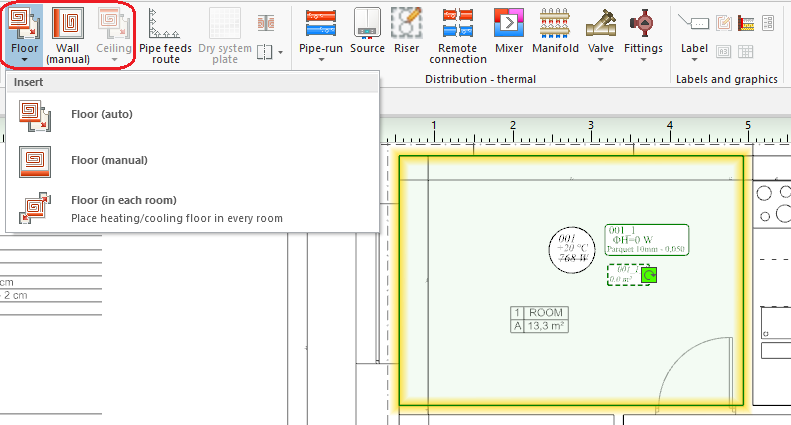
1. Inserting Heating/Cooling Zone - Cut out appropriate fragments of: Heating/Cooling Zone and/or change their shapes to adapt them to occupied areas (stairs, bathtubs) in rooms.
- Divide selected areas of Heating/Cooling Zone with regard to required expansion allowances.
- Declare and set up the Peripheral zone (PZ).
For more information, see: [[{{{link}}}]] Dividing a Heating/Cooling Zone

Manifold
- Insert Manifold on every storey. Manifold is inserted in the drawing together with manifold cabinet.
For more information, see: [[{{{link}}}]] Manifold and accessories

Pipe feeds route
- Connect Heating/Cooling Zone with manifolds using Pipe feeds route. Pipe feeds route enables automatic generation of pipe feeds.
For more information, see: [[{{{link}}}]] Editing pipe feeds in a radiant system

Edit installation - feed to manifolds
Source
- Insert Source on the lowermost storey.
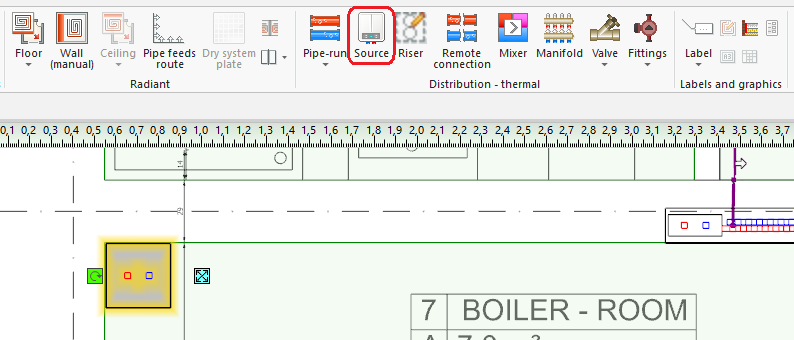
4. Inserting Source

Riser
- Insert Riser, assign a symbol to it and define its extent (from storey 0 to storey 1).
For more information, see: [[{{{link}}}]] Connecting storeys with the "Stack" element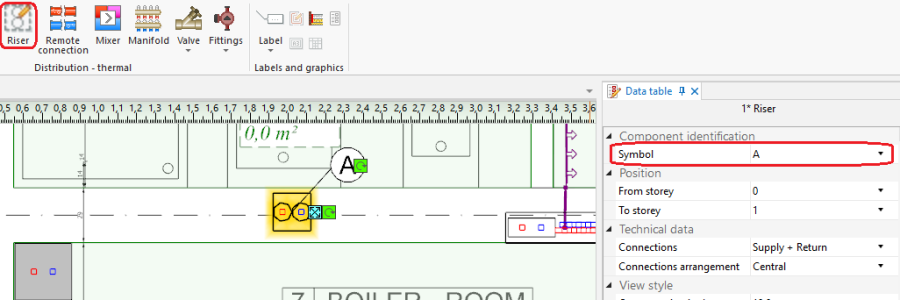
5. Inserting Riser

Distribution
- Connect Source, Manifold, Riser with each other by drawing the network using the Pipe-run component and the AUTO and ORTO modes.

6. Connecting system components

Fittings
- Insert Valve onto pipe-runs.

7. Inserting Fittings - Select Valve type in Data table.

8. Valve type - Use Copy - Paste to insert fittings of the same type onto other pipe-runs.


Verify correctness of installation structure
- Verify the correctness of the installation structure using the Check connections function (Key shortcut: Shift + F2).
- Verify the correctness of the installation structure and find conflicts using 3D view.
For more information, see: [[{{{link}}}]] Verification of the correctness of installation structure
Edit installation components data
Covering
- Mark selected Heating/Cooling Zone components and specify the type of Covering.
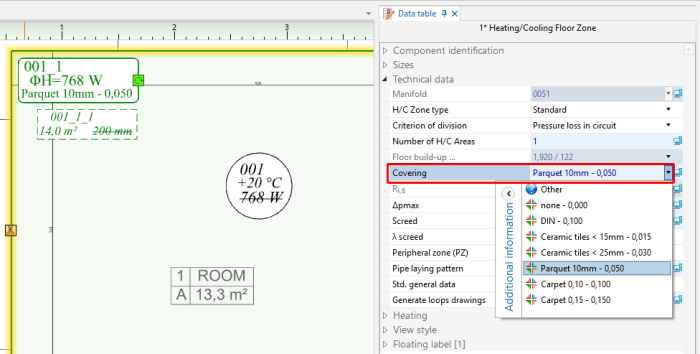
9. Covering

Heating/Cooling Zone
- Mark these Heating/Cooling Zones where significant surface area is occupied by pipe feeds and change their type to Heated/cooled by pipe feeds. Remember in this case to remove connections with the manifold.
- Mark these Heating/Cooling Zones where no loops are to be arranged and change their type to Without pipes.
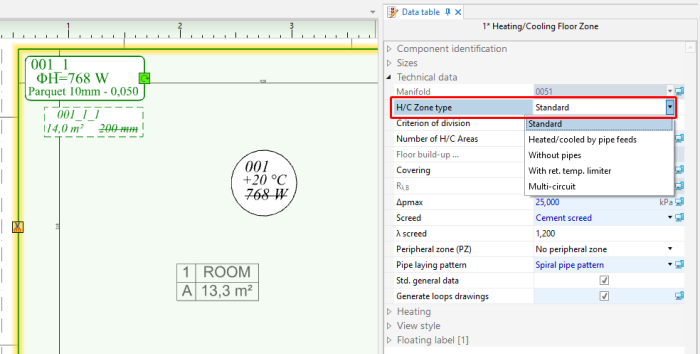
10. Type Heating/Cooling Zone

Calculations and diagnostics
Radiant system calculations
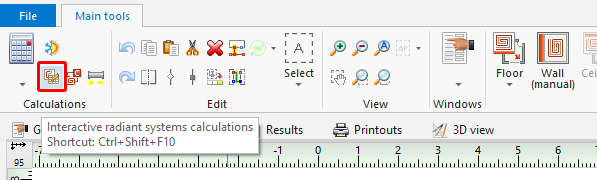
- Launch complete calculations by clicking the
 icon in the Calculations section of the toolbar.
 - Open the Diagnostics window by selecting it in the list of windows or by pressing F8.
- After calculations are completed verify the messages listed in the Diagnostics window. If error messages are displayed, these must be eliminated in the first place.

For more information, see: [[{{{link}}}]] Calculations and diagnostics
Modifying system parameters to adapt attained output to required output
- Change feed temperature of the radiant system by using control circuits, which can be found in General data window in Thermal systems/Sources section.
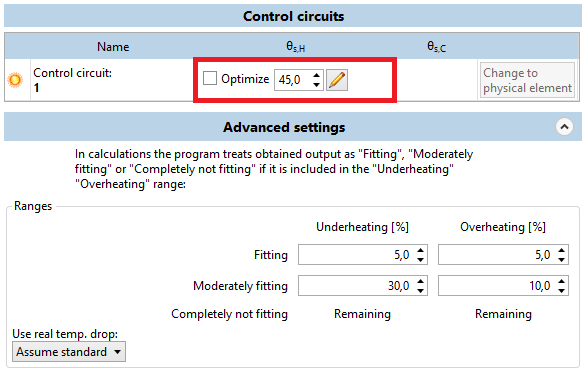
11. Control circuits - Change pipe spacing and temperature drop in individual loops.
12. Interactive radiant systems calculations 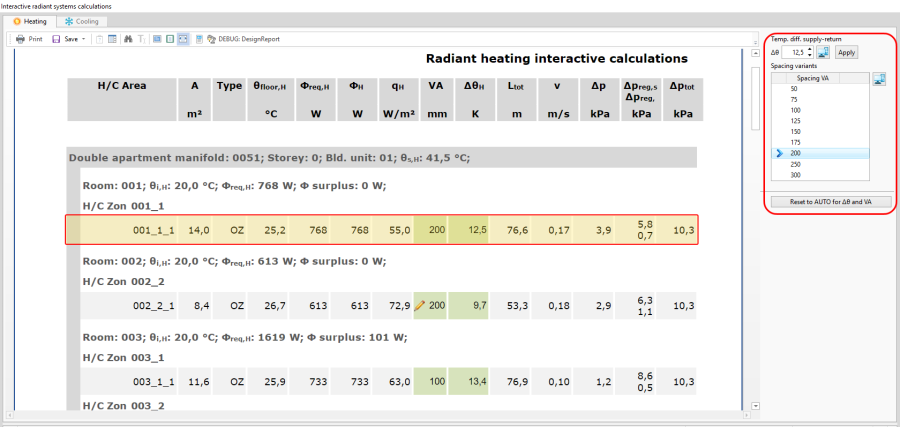
13. Interactive radiant systems calculations - Change structure of heating floor\wall.

14. Floor build-up ... - Change Max. press. drop in circuit.

15. Max. press. drop in circuit


Modifying the dividing line of element Heating/Cooling Zone to elements Heating-cooling surface
For more information, see: [[{{{link}}}]] Modifying the dividing line after automatic division
Manual correction of automatically generated pipe feeds route
For more information, see: [[{{{link}}}]] Pipe feeds route - manual correction of automatically generated pipe feeds route
Appending drawings with radiant system loops
For more information, see: [[{{{link}}}]] Appending drawings with radiant system loops
Including of drawing loop lenght in the calculations
For more information, see: [[{{{link}}}]] How to include the drawing loop lenght in the calculations?
Using of plates in dry floor heating system
For more information, see: [[{{{link}}}]] Inserting plates in dry floor heating system
Recalculation and verification of results
- Verify calculation results paying special attention to:
- coverage of heat demand in rooms,
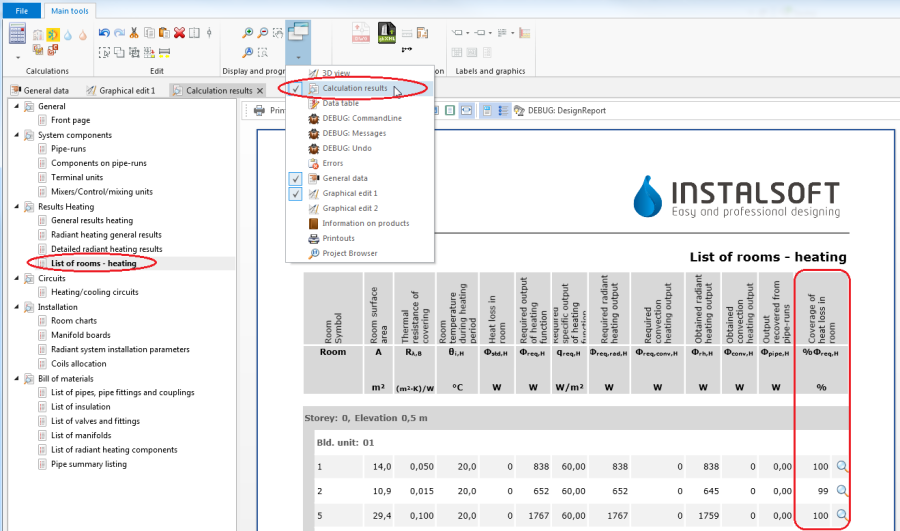
16. Coverage of required heating output - sized layers in Heating/cooling floor, to see if there are no undesirable differences in height/thickness in adjacent areas.

17. Floor build-up ... - bills of materials.
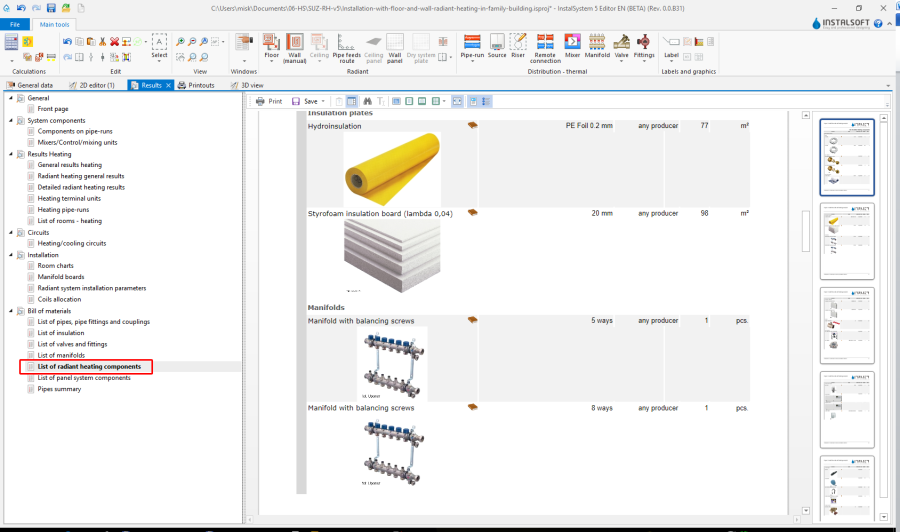
18. Bill of materials - heating / cooling - List of radiant heating components
- coverage of heat demand in rooms,


Prepare drawing for printing/export
Label
- Insert required labels onto components.
- Configure the label appearance (opc).
For more information, see: [[{{{link}}}]] Item 5. Component appearance configuration and editing parameters configuration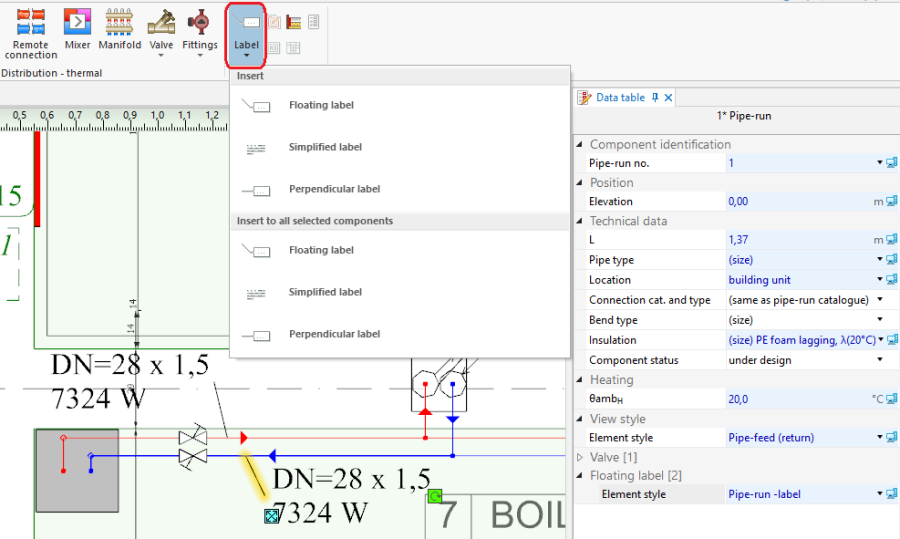
19. Inserting Label

Manifold table
- Insert Manifold table.
For more information, see: [[{{{link}}}]] Manifold label and table
Structure cross section drawing
- Insert Structure cross section drawing. Rescale and configure, if necessary.
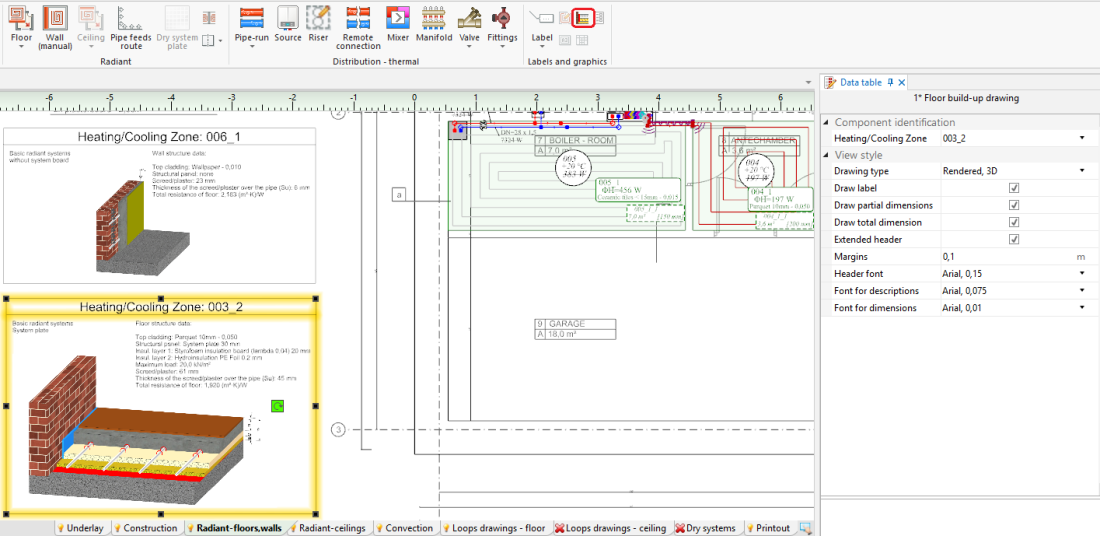
20. Structure cross section drawing

RHC loop
- Automatically generate the RHC loop drawings.
For more information, see: [[{{{link}}}]] Automatic generation of loop drawings - Check the generated RHC loop drawings and modify them manually, if necessary.
For more information, see: [[{{{link}}}]] Manual editing of loop drawings
Drawing frame
- Insert Drawing frame.
- Select Drawing frame in Data table .

21. Inserting Drawing frame

Drawing chart
- Insert Drawing chart.
- Enter the required data in Data table.
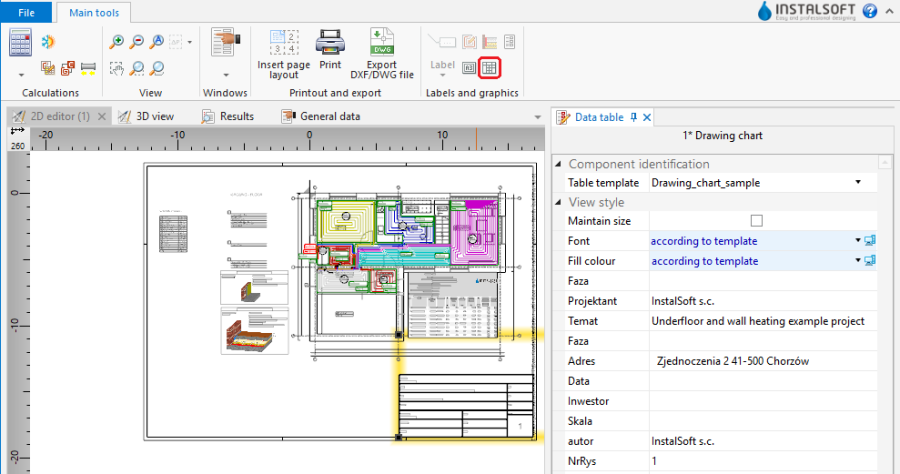
22.Drawing chart

Print/export results
- Print/export drawings.
- Print/export tables.
For more information, see: [[{{{link}}}]] Export / print results and drawings